Best overall: Outlook’s built-in Report button. Best for existing Cyber Aware users: the Cyber Aware phishing report button, subject to a tenant-level pilot. Best for established KnowBe4 programmes: Phish Alert Button. This 2026 guide compares five Outlook reporting options and explains how to choose the right reporting workflow, not just another toolbar icon.
TL;DR
- For the report phishing Outlook task, start with Microsoft’s built-in Report button and verify your reporting destination.
- Cyber Aware’s phishing report button belongs on the shortlist for existing users; test the Outlook workflow before deployment.
- KnowBe4 Phish Alert Button, Cofense Reporter and Proofpoint PhishAlarm suit evaluations centred on their respective reporting ecosystems.
- Choose one clearly communicated reporting route, assign a triage owner and test genuine reports separately from simulations.
Why this matters
A phishing report button collects suspicion. It does not, by itself, investigate the message, contain an account compromise or tell a worried employee what happens next.
For your 2026 shortlist, separate employee reporting from analyst response. The right choice gives staff an obvious action and sends usable evidence to someone responsible for reviewing it. A prominent button with an unattended destination fails that test.
Microsoft’s built-in Report button is the best starting point for Microsoft 365 teams that want native Outlook phishing reporting. Add a third-party reporting tool when it solves a defined training, investigation or operational requirement.
What makes the best Outlook phishing report button?
Use these criteria before comparing vendors. Treat a failed essential requirement as a rejection, not a minor scoring deduction.
- Client coverage: Verify the Outlook applications your staff actually use, including web, Windows, Mac and mobile where relevant. Do not assume identical behaviour across clients.
- Report destination: Establish who receives the message, what evidence accompanies it and how analysts access that evidence.
- Employee clarity: Staff should recognise the reporting action without deciding which security vendor owns the suspicious email.
- Simulation handling: Test how reported training messages are distinguished from genuine suspicious messages. Require a demonstration rather than assuming a connection.
- Response ownership: Name the team that reviews submissions, handles urgent escalation and closes the loop with reporters.
- Administrative control: Review permissions, deployment, removal, data handling and the effect of running multiple reporting controls together.
For a small IT team, destination and ownership deserve priority over dashboard detail. Enterprise teams should also test delegation, shared-mailbox scenarios and how reports enter existing investigation queues.
Outlook phishing report tools at a glance
These are use-case recommendations, not detection-accuracy rankings. Reporting buttons submit messages; the surrounding security workflow determines what happens afterwards.
| Rank and option | Best for | Standout distinction | Key limitation |
|---|---|---|---|
| 1. Microsoft built-in Report button | Microsoft-native reporting | Reporting action inside supported Outlook experiences | Tenant reporting settings still need configuration and testing |
| 2. Cyber Aware phishing report button | Existing platform users | A platform-specific Outlook reporting option | Validate destination, client support and simulation behaviour directly |
| 3. KnowBe4 Phish Alert Button | Existing KnowBe4 programmes | Reporting option associated with the KnowBe4 ecosystem | Do not assume the button includes every downstream response capability |
| 4. Cofense Reporter | Cofense-centred reporting workflows | Dedicated suspicious-email reporting component | Investigation requirements extend beyond the reporting button |
| 5. Proofpoint PhishAlarm | Proofpoint-centred programmes | Dedicated employee email-reporting component | Confirm which analysis and response components your deployment includes |
1. Microsoft built-in Report button: best for native Outlook reporting
Microsoft’s built-in Report button lets users report messages from supported Outlook experiences. In organisational deployments, Microsoft’s user-reported settings govern reporting destinations and related behaviour.
Start here when your requirement is straightforward: employees need to submit suspicious email through Outlook, and IT needs a controlled receiving process. Keep configuration separate from the employee instruction; staff should not need to understand the reporting architecture.
Microsoft built-in Report button pros:
- Keeps the reporting action within Outlook.
- Offers a Microsoft-native starting point for Microsoft 365 environments.
- Supports a reporting process governed through Microsoft’s organisational settings.
Microsoft built-in Report button cons:
- Reporting behaviour depends on your tenant configuration.
- A submitted report still requires review and escalation ownership.
- You must verify the experience in each relevant Outlook client.
Best for: Microsoft 365 teams establishing a clear reporting baseline before evaluating another reporting component.
For a 2026 deployment, use Microsoft’s documentation on the built-in Report button and user-reported settings alongside your tenant configuration. Do not substitute instructions for a legacy add-in without checking which reporting control your users see.
Verdict: Buy — choose the native reporting route first when it satisfies your receiving and response requirements.
2. Cyber Aware phishing report button: best for existing users
Cyber Aware has an Outlook phishing report button deployment guide. For an organisation already using the platform, that makes the button a relevant candidate for a practical evaluation rather than an automatic replacement for native reporting.
Use the guide to add the phishing report button to Outlook, then validate the complete reporting journey. Check the receiving destination, employee confirmation, supported clients and treatment of reported simulations before making it your standard.
Cyber Aware phishing report button pros:
- Has a dedicated Outlook deployment guide.
- Provides an option for an existing platform evaluation.
- Gives your pilot a specific reporting component to assess alongside native Outlook reporting.
Cyber Aware phishing report button cons:
- A deployment guide alone does not establish your tenant’s reporting behaviour.
- Client coverage and downstream handling require direct confirmation.
- Keeping an additional reporting route needs a clear operational reason.
Best for: Existing users deciding whether a platform-specific reporting route meets their Outlook requirements.
Ask for a demonstration using your intended workflow. A successful installation is only the beginning; the report must reach the right person with enough information to investigate.
Verdict: Hold — standardise only after the pilot confirms the destination and response workflow.
3. KnowBe4 Phish Alert Button: best for KnowBe4 programmes
KnowBe4 Phish Alert Button gives employees a way to report suspicious email. Its natural evaluation context is an organisation already using KnowBe4 for its security awareness programme.
Evaluate the button against your existing reporting and simulation requirements. Distinguish the submission action from any analysis, automation or case-management capability you expect around it.
KnowBe4 Phish Alert Button pros:
- Provides a dedicated suspicious-email reporting action.
- Fits a KnowBe4-centred product evaluation.
- Gives programme owners a defined reporting component to test with their simulations.
KnowBe4 Phish Alert Button cons:
- The button alone does not establish an investigation process.
- Supported clients, configuration and deployment requirements need checking.
- A second reporting action can complicate employee instructions.
Best for: Organisations with an established KnowBe4 programme and a specific need to assess its reporting option.
Require the demonstration to cover both a simulation and a genuine suspicious-message scenario. Record where each report appears and what the responsible team does next.
Verdict: Buy — shortlist for an existing KnowBe4 programme when the reporting workflow passes your tests.
4. Cofense Reporter: best for Cofense-centred reporting workflows
Cofense Reporter is an employee suspicious-email reporting component. Consider it when your evaluation centres on Cofense’s reporting and phishing-response ecosystem rather than a standalone Outlook interface change.
Keep the scope precise. A reporting component and an analyst investigation capability are different requirements, even when you evaluate them within the same vendor ecosystem.
Cofense Reporter pros:
- Focuses on employee submission of suspicious email.
- Provides a reporting component for a Cofense-centred evaluation.
- Supports a clear separation between submission requirements and investigation requirements.
Cofense Reporter cons:
- The reporting button is not a complete incident-response process.
- Deployment fit depends on your Outlook environment and configuration.
- Downstream analysis requirements need separate validation.
Best for: Security teams evaluating employee reporting as part of a Cofense-centred operating model.
Ask analysts to assess the resulting submission, not just the toolbar experience. They need evidence they can use and an unambiguous escalation path.
Verdict: Hold — choose after confirming the investigation workflow around the reporting component.
5. Proofpoint PhishAlarm: best for Proofpoint-centred programmes
Proofpoint PhishAlarm provides an employee action for reporting suspicious email. It belongs on a shortlist when Proofpoint is central to your awareness or phishing-response evaluation.
Confirm the boundary between PhishAlarm and the other analysis or response components proposed for your organisation. Product-family names are not evidence that every capability is included in your deployment.
Proofpoint PhishAlarm pros:
- Provides a dedicated employee reporting action.
- Fits a Proofpoint-centred evaluation.
- Gives employees a defined alternative to manually forwarding suspicious messages.
Proofpoint PhishAlarm cons:
- Reporting does not establish which response capabilities are included.
- Client support and administrator requirements need confirmation.
- Your team still needs a documented triage process.
Best for: Organisations assessing reporting within a Proofpoint-centred programme.
Verdict: Hold — validate the complete submission-to-response path before standardising.
How we ranked these Outlook reporting options
The ranking prioritises native fit first, existing-platform fit second and operational requirements throughout. Microsoft leads as the starting point for a Microsoft-native requirement; the remaining options occupy distinct existing-ecosystem slots.
This 2026 comparison does not assign unsupported accuracy scores or claim that one button prevents more attacks. Choose against demonstrated client coverage, destination, employee clarity, simulation handling, ownership and administration.
Test the reporting workflow before rollout
Use the same acceptance process for every shortlisted tool. Give your administrator and incident responder a shared test record so deployment success cannot conceal a receiving failure.
Deployment
Install or enable the chosen control for a pilot group. Record which Outlook clients and mailbox types are in scope, then check visibility and permissions in each relevant combination.
Test ordinary user accounts rather than relying only on an administrator’s mailbox. Include delegated or shared access when those scenarios form part of your actual working environment.
Submission
Use 3 message types: an authorised simulation, a benign business message and a safely prepared suspicious-message example. These are test cases, not a requirement to send live malicious content.
For each case, record the employee action, confirmation and resulting mailbox behaviour. Check whether an uncertain employee can report without first deciding that the email is definitely malicious.
Triage
Trace each submission to its receiving queue. Confirm that the reviewer can identify the reporter, inspect the submitted evidence and distinguish training traffic from reports needing investigation.
Inspect handling of ordinary business email too. False-positive reports need a repeatable closure process, not an instruction that discourages staff from reporting uncertainty.
Feedback
Define who acknowledges reports and who communicates the outcome. Keep feedback useful: thank the employee, explain the next step and avoid treating a mistaken report as misconduct.
These 4 workflow stages belong in the acceptance record for your 2026 rollout. Reject a workflow that loses ownership between submission and investigation, regardless of how polished the button looks.
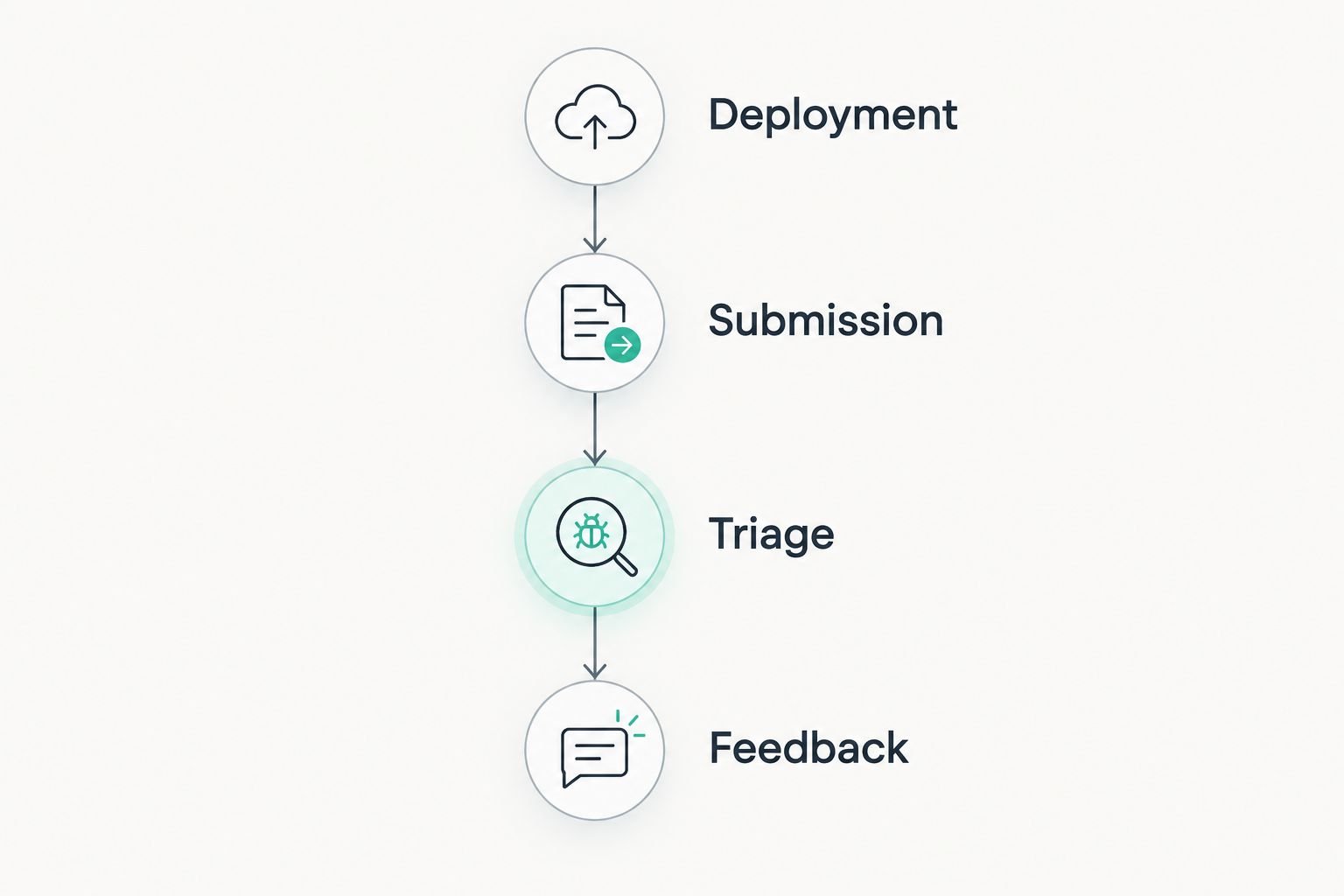
Accept the reporting workflow only when every stage has a clear owner or outcome.
After the pilot, publish one primary reporting instruction. If multiple controls remain visible, explain their purpose explicitly rather than asking staff to choose between unexplained buttons.
Which Outlook phishing report tool should you choose?
Choose Microsoft’s built-in Report button as the default evaluation baseline. Move to an ecosystem-specific button when your pilot demonstrates a necessary benefit for the way your organisation receives, reviews or learns from reports.
For your 2026 decision, document 5 acceptance checks: button visibility, successful submission, evidence received, reviewer ownership and employee feedback. A failed check needs a fix before wider deployment.
Do not choose a tool solely because it produces a simulation reporting chart. Your genuine-report workflow must work independently of the training calendar, including when the regular programme owner is absent.
FAQ
How do I report phishing in Outlook?
Select the suspicious message and use your organisation’s approved Report action, choosing phishing where that option appears. The exact location depends on your Outlook client and deployed reporting control; do not open links or attachments to investigate it yourself.
What is the best phishing report button for Outlook in 2026?
Microsoft’s built-in Report button is the best starting point for Microsoft-native reporting requirements. Choose a third-party option when a tenant-level pilot demonstrates a specific need for its reporting workflow.
Is the Outlook Report button enough for a small business?
The Outlook Report button is sufficient as a submission route when it reaches a monitored destination and someone owns the response. It does not replace investigation, account protection or an incident-response procedure.
Should staff use Report Junk or Report Phishing?
Staff should use the phishing option for messages suspected of deception or credential theft, following your organisation’s instructions. Unwanted promotional email and suspected phishing are different reporting cases.
Can I keep Microsoft reporting and a third-party button?
Keep both only when their purposes and destinations are clearly documented. Test the resulting experience and give staff an unambiguous primary reporting instruction.
Does reporting a phishing email automatically remove it from everyone’s inbox?
Do not assume that a report removes the message from other inboxes. Organisation-wide investigation and remediation depend on separately configured security capabilities and response procedures.
What should I do if I clicked before reporting?
Report the message and immediately tell your IT or security team that you clicked. Explain whether you entered credentials, approved an authentication request or opened a file, and follow your incident-response instructions.
One last thing
Test the handover, not just the button. Ask the backup responder to locate and assess a pilot submission without help from the person who configured reporting.
If the backup responder cannot find it, your next improvement is ownership and documentation—not another Outlook add-in.